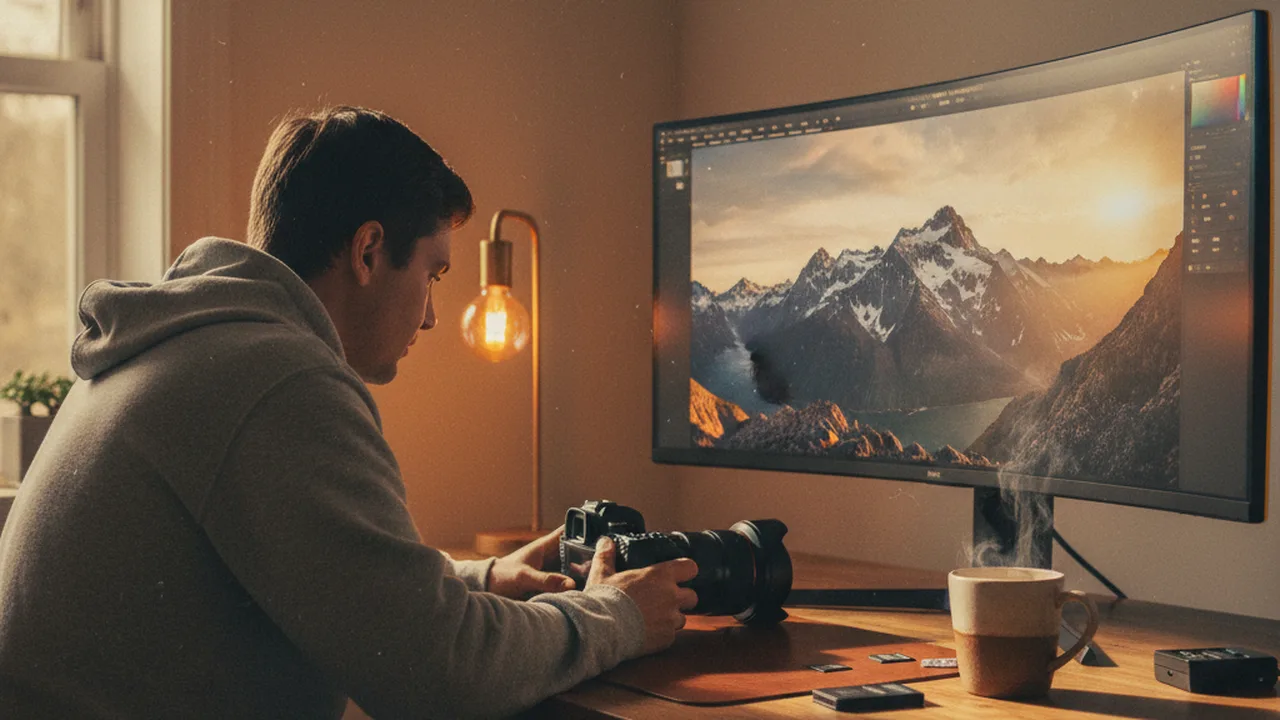
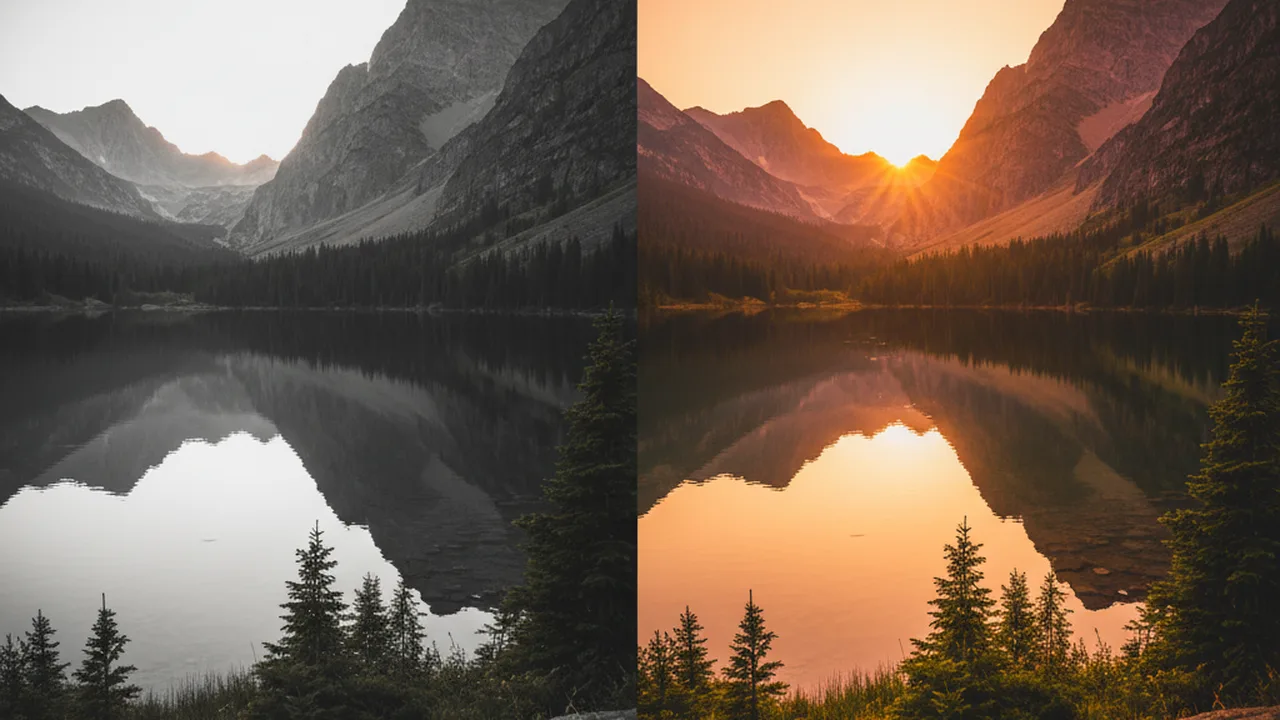
You just shot 200 photos in golden hour light, and they all look flat and lifeless on your computer screen. That washed-out, low-contrast look isn’t a mistake — it’s exactly what RAW files are supposed to look like. Unlike JPEGs, where your camera applies sharpening, contrast, and color adjustments automatically, RAW files give you the unprocessed sensor data so you control every detail of the final image.
Auf einen Blick: You just shot 200 photos in golden hour light, and they all look flat and lifeless on your computer screen. That washed-out, low-contrast look isn’t a mistake — it’s exactly what RAW…
📸 Key Facts About RAW Photo Editing
- RAW files contain 4,096–16,384 brightness levels vs. 256 in JPEG
- You can recover 2–3 stops of exposure from a RAW file without quality loss
- White balance is fully adjustable after the shot — no more blue-tinted indoor photos
- Professional photographers shoot RAW exclusively for maximum editing flexibility
Contents
What Is a RAW File (And Why Does It Look So Flat)?
A RAW file is the digital equivalent of an undeveloped film negative. Your camera sensor captures light data — millions of individual brightness and color readings — and saves it without any processing.
When you shoot JPEG, your camera’s processor applies a recipe: boosting saturation, adding contrast, sharpening edges, and compressing the file down to 8 bits per channel. That compression permanently discards roughly 98% of the original data.
RAW files skip that recipe entirely. They preserve 12-bit or 14-bit data per channel, which means dramatically more information to work with in post-processing. A 14-bit RAW file contains 16,384 tonal values per channel compared to JPEG’s 256. That’s the difference between having a full orchestra of editing options and being stuck with a kazoo.
Common RAW file formats include:
| Camera Brand | RAW Format | File Extension |
|---|---|---|
| Canon | Canon RAW | .CR2, .CR3 |
| Nikon | Nikon Electronic Format | .NEF, .NRW |
| Sony | Sony Alpha RAW | .ARW |
| Fujifilm | Fuji RAW | .RAF |
| Adobe (Universal) | Digital Negative | .DNG |
Best Software for Editing RAW Photos
Your choice of editing software shapes your entire workflow. Here’s what actually matters when picking one — not marketing claims, but real-world usability for RAW processing.
Adobe Lightroom Classic remains the industry standard for a reason. Its catalog system handles thousands of RAW files efficiently, the Develop module covers every adjustment you’ll need, and preset support means you can batch-edit an entire wedding shoot in minutes. The subscription model ($9.99/month with Photoshop) bothers some photographers, but the tool quality justifies it.
Capture One offers superior color science, particularly for Fujifilm and Sony shooters. Its color grading tools are more precise than Lightroom’s, and tethered shooting performance is noticeably better. The learning curve is steeper, and at $24.99/month, it’s a significant investment.
DxO PhotoLab stands out for its AI-powered noise reduction (DeepPRIME XD), which is genuinely the best in the industry. If you shoot in low light frequently — concerts, astrophotography, indoor events — this alone might be worth the $229 one-time purchase.
Darktable is the best free option available. It’s open-source, runs on Windows, Mac, and Linux, and handles RAW processing competently. The interface isn’t as polished as commercial alternatives, and the learning curve is steep, but you can’t argue with the price.
| Software | Best For | Price | Platform |
|---|---|---|---|
| Lightroom Classic | All-around RAW editing, batch processing | $9.99/mo | Win, Mac |
| Capture One | Color accuracy, tethered shooting | $24.99/mo | Win, Mac |
| DxO PhotoLab | Noise reduction, lens correction | $229 (one-time) | Win, Mac |
| Darktable | Free alternative, Linux support | Free | Win, Mac, Linux |
| RawTherapee | Advanced control, free | Free | Win, Mac, Linux |
Step-by-Step: How to Edit RAW Photos
Every RAW editing workflow follows the same fundamental sequence, regardless of which software you use. Here’s the order that produces the best results — and why that order matters.
Step 1: Import and Organize
Import your RAW files into your editing software and cull ruthlessly. Flag your best shots, reject the obvious misses (out of focus, eyes closed, blown highlights beyond recovery). Most professionals keep roughly 10-20% of what they shoot.
Create a folder structure that works for you. Date-based (2026/03/05-portrait-session) is simple and scalable. The key is consistency — pick a system and stick with it.
Step 2: Set White Balance
This is the single biggest advantage of shooting RAW. White balance in JPEG is baked in permanently. In RAW, it’s just a metadata tag you can change freely.
Start with the eyedropper tool — click on something that should be neutral gray or white in your image. This gets you 90% of the way there. Then fine-tune the temperature slider: move it right (warmer/more yellow) for cozy indoor shots, left (cooler/more blue) for crisp morning light.
For golden hour landscapes, try pushing temperature to 6000-7000K to enhance those warm tones. For portraits in shade, 5500-6000K usually produces natural-looking skin.
Step 3: Adjust Exposure and Tone
The tone section is where flat RAW files come to life. Work through these sliders in order:
Exposure — Get the overall brightness right first. Use the histogram as your guide: you want data spread across the full range without clipping at either end. A properly exposed image has its histogram peak roughly centered.
Highlights — Pull these left (negative) to recover detail in bright areas like skies and windows. RAW files can typically recover 2 full stops of highlight detail that would be permanently lost in JPEG.
Shadows — Push right (positive) to reveal detail in dark areas. This is where 14-bit RAW data really shines — you’ll pull clean detail from shadows that would be noisy garbage in an 8-bit JPEG.
Whites and Blacks — These set the absolute brightest and darkest points. Hold Alt/Option while dragging to see clipping warnings. You want just a tiny bit of pure white and pure black to give the image full dynamic range.
Step 4: Add Contrast and Clarity
After setting your tonal range, add contrast to create depth. A value between +15 and +35 works for most images. Too much contrast crushes shadow detail; too little leaves the image looking flat.
Clarity (or microcontrast) adds punch to midtone details. Landscapes love clarity (+20 to +40). Portraits need less — often zero, or even slightly negative (-10 to -15) for softer skin rendering. Overdoing clarity creates a grungy, HDR-like look that screams “over-edited.”
Step 5: Fine-Tune Colors with HSL
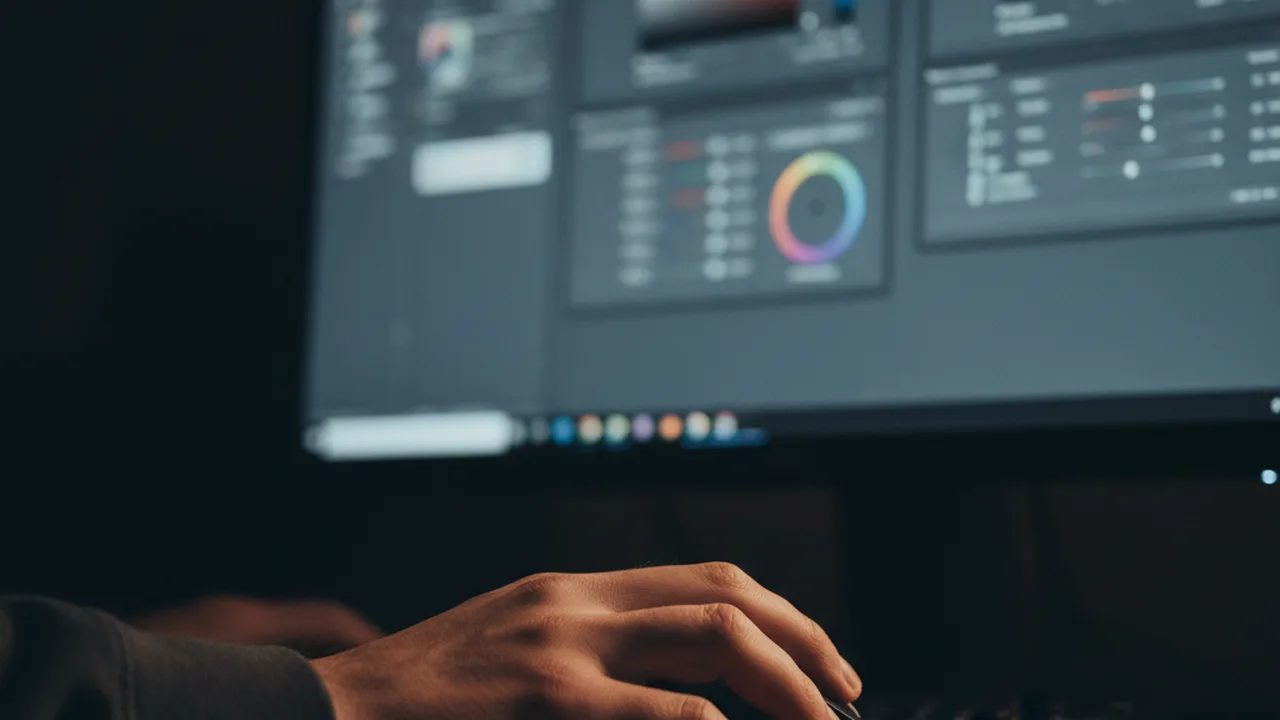
The HSL (Hue, Saturation, Luminance) panel gives you surgical control over individual colors. This is where good edits become great ones.
Practical examples:
- Make skies pop: Decrease blue luminance by 15-25, increase blue saturation by 10-15
- Fix skin tones: Shift orange hue slightly toward yellow, reduce orange saturation by 5-10
- Autumn foliage: Push orange hue toward red, increase yellow and orange saturation by 15-20
- Green grass: Shift green hue toward yellow for a warmer look, increase luminance for brightness
Step 6: Apply Sharpening and Noise Reduction
RAW files have zero sharpening applied — your software needs to add it. The defaults in most RAW processors are a reasonable starting point, but here are better values for common scenarios:
| Scenario | Sharpening Amount | Radius | Noise Reduction |
|---|---|---|---|
| Landscapes (ISO 100-400) | 70-90 | 1.0 | 10-15 |
| Portraits (ISO 200-800) | 40-60 | 1.2 | 20-30 |
| Low Light (ISO 3200+) | 50-70 | 0.8 | 40-60 |
| Wildlife/Action | 80-100 | 1.0 | 15-25 |
Pro tip: Always check sharpening at 100% zoom. What looks perfect at fit-to-screen often reveals halos and artifacts when you zoom in. Use the masking slider (hold Alt/Option) to limit sharpening to edges only — this prevents noise amplification in smooth areas like skies and skin.
Step 7: Crop and Straighten
Crop last, not first. Why? Because your tonal adjustments might reveal interesting detail in areas you initially planned to cut. RAW files contain enough resolution that a moderate crop (up to 30-40%) still produces print-quality results.
Use the rule of thirds grid overlay while cropping. Align your subject’s eyes, horizon lines, or key elements with the grid intersections. Straighten tilted horizons — even a 0.5° tilt is visible to most viewers and makes a photo look amateurish.
Step 8: Export Your Final Image
Your edited RAW file needs to be exported to a usable format. The settings depend on where the photo is going:
- Web/social media: JPEG, quality 80-85%, sRGB color space, resize to 2048px on the long edge
- Printing: TIFF (16-bit), Adobe RGB color space, full resolution, 300 DPI
- Archiving: DNG (preserves all RAW data in a standardized format)
- Client delivery: JPEG, quality 90-95%, sRGB, full resolution
Common RAW Editing Mistakes (And How to Avoid Them)
After reviewing thousands of edited images from photography students and hobbyists, these are the mistakes that come up repeatedly:
Over-saturating colors. The saturation slider is tempting, but pushing it past +25 makes photos look cartoonish. Instead, use vibrance — it boosts muted colors while protecting already-saturated tones and skin. A vibrance of +20-30 with saturation at 0-5 usually produces more natural results.
Crushing blacks for “mood.” Dragging the blacks slider to -100 destroys shadow detail and creates ugly posterization in dark areas. If you want deep shadows, use -30 to -50 and add a slight tone curve lift at the shadow end for that film-like fade.
Ignoring lens corrections. Every lens introduces distortion, vignetting, and chromatic aberration. Enable your software’s lens profile corrections as a first step — it’s free image quality improvement that takes one click.
Editing on an uncalibrated monitor. Your beautifully edited photo might look completely different on someone else’s screen if your monitor isn’t calibrated. A hardware calibrator like the Datacolor SpyderX or X-Rite i1Display costs $100-180 and eliminates guesswork.
💡 Pro Tip: Create a “base preset” with your lens corrections, default sharpening, and preferred color profile applied. Import this preset automatically on every new RAW file — it saves 2-3 clicks per image and ensures consistent starting points across your entire library.
RAW vs. JPEG: When to Shoot Which
RAW isn’t always the right choice. Here’s an honest breakdown:
Always shoot RAW when:
- The lighting is tricky (mixed sources, harsh contrast, backlit subjects)
- You’re shooting professionally and need maximum editing flexibility
- Color accuracy matters (product photography, skin tones, branded content)
- You’re shooting landscapes, architecture, or anything you might print large
JPEG is fine when:
- You’re documenting something quickly (travel snapshots, event logs)
- Storage space is genuinely limited (long timelapse sequences)
- You need to share photos immediately without editing
- You’re shooting sports/action and burst rate matters more than editing latitude
Best compromise: Most modern cameras offer RAW+JPEG mode. You get an instantly shareable JPEG and the RAW file for serious editing later. The only cost is storage space — a 256GB card holds roughly 4,000 RAW+JPEG pairs on a 45MP camera.
Frequently Asked Questions
Your Next Steps
RAW editing isn’t difficult — it’s just unfamiliar. Start with one photo you’re excited about, work through the steps above, and compare the result to the straight-out-of-camera JPEG. That comparison alone will convince you that the extra effort is worth it.
The real skill isn’t memorizing slider values. It’s developing your eye for what a finished photo should look like, and understanding which tools get you there. That comes with practice — edit 10 photos and you’ll feel comfortable, edit 100 and you’ll be fast, edit 1,000 and you’ll have a personal style.
📷 Explore More Photography Guides
Master your camera settings, find the right gear, and level up your photography skills.
Explore More Photography Guides
Find the perfect gear and techniques for your next shoot.