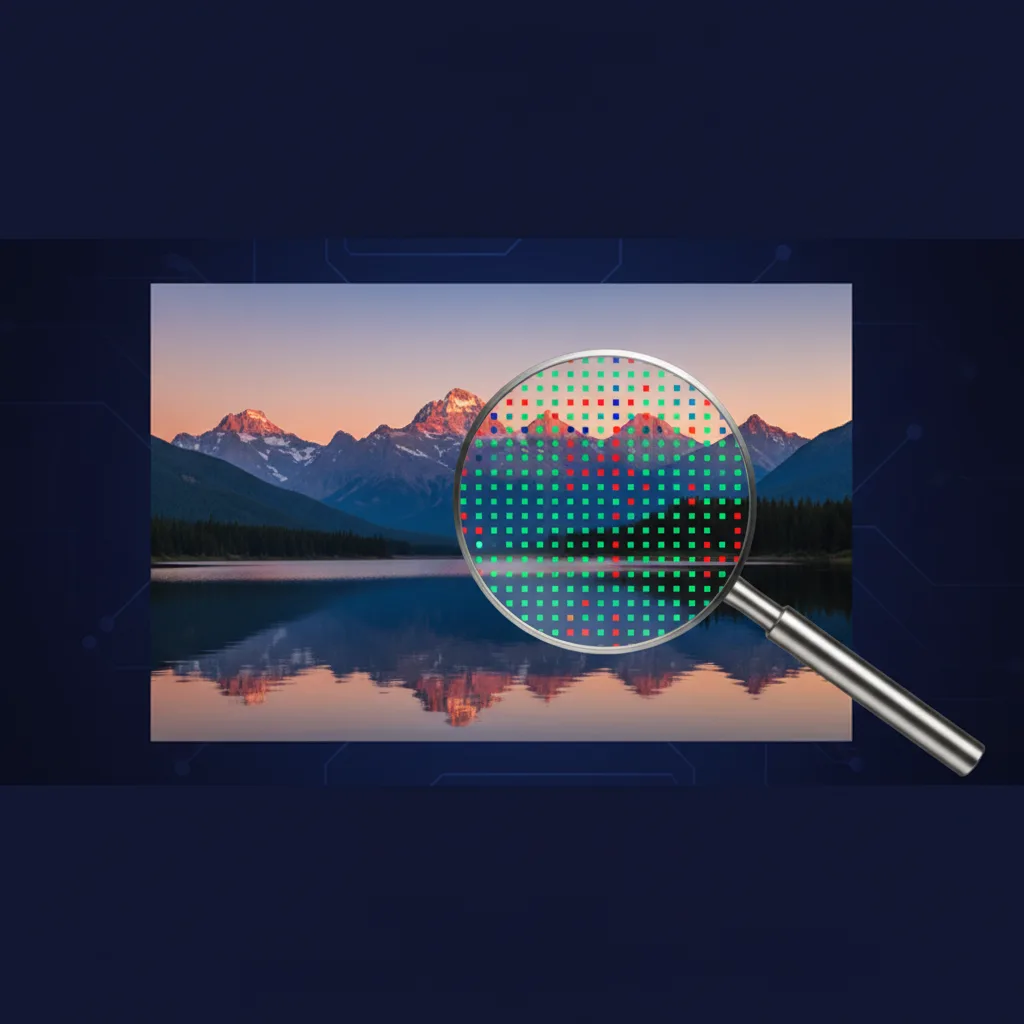
Photo print size calculator: enter the image’s pixel width and height, then choose a target print resolution in pixels per inch (PPI). The tool shows the physical size in inches and centimeters. It runs on this page without sending your dimensions or photographs to another website.
Enter the image's pixel dimensions and your target print resolution.
Print size at your target PPI
Calculating…
Source image:
Formula: pixels ÷ PPI = inches. This is a size calculation, not a guarantee of print sharpness.
How to calculate print size from pixels
Divide each pixel dimension by the desired PPI. A 3,000 × 2,000 pixel image at 300 PPI can fill 10 × 6.67 inches without resampling. At 200 PPI, the same file fills 15 × 10 inches. The pixel data has not changed; it is spread across a larger area.
Formula: print width in inches = pixel width ÷ target PPI; print height in inches = pixel height ÷ target PPI. Multiply inches by 2.54 for centimeters. Adobe’s image-size guide explains the same relationship and the difference between changing print size and resampling.
What PPI should you choose?
300 PPI is a useful starting point for a close-viewed photo print, but it is not a universal pass-or-fail line. A larger print viewed from farther away can often use fewer pixels per inch. The paper, printer or lab, sharpening, and image quality also matter. Adobe notes that around 220 PPI is often sufficient for high-quality inkjet photo prints. Ask your print provider for its preferred file size before ordering an important print.
- 300 PPI: a conservative starting point for small prints and close inspection.
- 200–240 PPI: a practical range to evaluate for many wall prints; inspect a proof.
- 150 PPI or lower: may suit a large image viewed at a distance, subject to the print provider’s requirements and the source image.
The calculator uses image PPI. Printer DPI refers to the printer’s ink or marking dots and is a different measurement. Many print services casually call a 300 PPI image a “300 DPI file.”
Pixel requirements for common print sizes
| Print size | Pixels at 300 PPI | Approximate megapixels |
|---|---|---|
| 4 × 6 in | 1,200 × 1,800 | 2.2 MP |
| 8 × 10 in | 2,400 × 3,000 | 7.2 MP |
| 11 × 14 in | 3,300 × 4,200 | 13.9 MP |
| 16 × 20 in | 4,800 × 6,000 | 28.8 MP |
| 20 × 30 in | 6,000 × 9,000 | 54 MP |
These are pixel counts for the final cropped file. For example, a 3:2 camera image does not exactly fit an 8 × 10 print, whose aspect ratio is 4:5. Cropping reduces one dimension and may lower the resulting PPI. Set your crop first, then enter the new pixel dimensions.
Changing a DPI setting does not add detail
If you change only the resolution number in an editor and leave resampling off, the file keeps the same pixels; its assigned physical print size changes. If you turn resampling on, software creates or removes pixels. Upscaling may help a particular print, but it cannot recover detail absent from the original. Adobe documents the distinction and recommends inspecting the result.
Sharp focus, low motion blur, sensible sharpening, and a good print profile can matter more than chasing a single resolution number. Order a small proof or inspect a full-size crop before paying for a large print.
Scanning old photographs for a new print
For a scan, the input resolution and the original’s physical size determine pixel dimensions. A 4 × 6 inch print scanned at 600 PPI produces about 2,400 × 3,600 pixels, which corresponds to 8 × 12 inches at 300 PPI before cropping. A higher scan setting cannot invent detail that the old print does not contain. Our guide to copying old photographs covers safe scanning and camera-copy choices.
Frequently asked questions
What is the print size of 3,000 × 2,000 pixels at 300 PPI?
10 × 6.67 inches, or approximately 25.4 × 16.93 centimeters.
Can a 24 MP image make a 16 × 20 print?
It depends on its pixel dimensions, crop, viewing distance, and the lab’s requirements. A typical 6,000 × 4,000 file is 20 × 13.33 inches at 300 PPI before cropping; a 4:5 crop changes that calculation. Enter the cropped file’s dimensions above.
Does “72 DPI” matter for a photo viewed on a screen?
The on-screen image is determined mainly by its pixel dimensions and the display. Changing the file’s DPI/PPI metadata without resampling does not add or remove pixels.
Does more megapixels always mean a better print?
No. The original’s focus, noise, lens quality, editing, and printing process also affect the result. Use the calculator for size planning and inspect an actual proof for quality.
Related tools and sources
Planning a camera and lens setup before taking the photo? Try our field of view calculator. This page’s calculations follow the pixel-size formula described in Adobe’s official image-size documentation. The examples are mathematical illustrations, not claims of a physical print test.