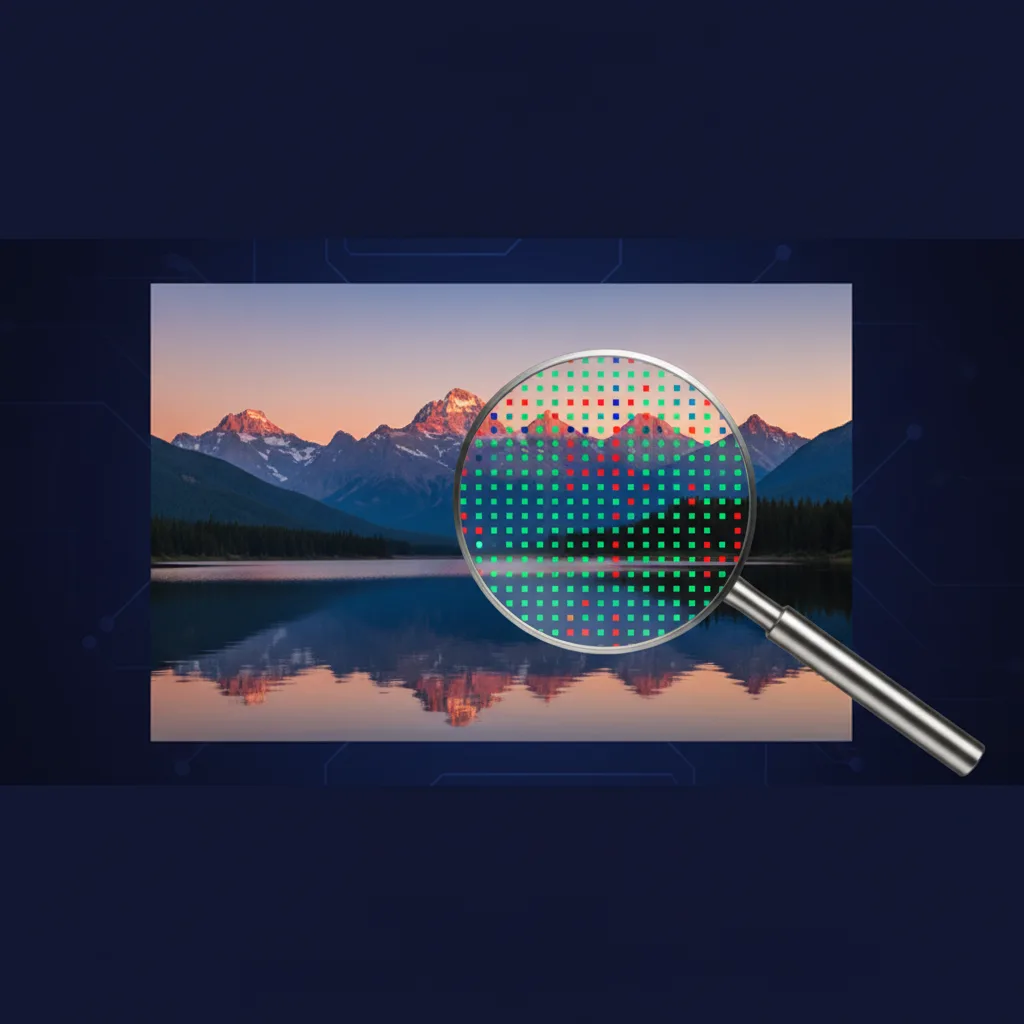
This DPI Calculator tells you the maximum print size for any digital photo at your chosen resolution. Enter your image dimensions in pixels, select a DPI value, and instantly see how large you can print — in inches and centimeters — with a quality rating. Essential for photographers selling prints, submitting to galleries, or ordering from print labs.
Contents
- 1 What Is DPI in Photography?
- 2 How to Use This Calculator
- 3 DPI vs. PPI — What’s the Actual Difference?
- 4 Print Size Guide by DPI
- 5 DPI Requirements by Print Type
- 6 Common Camera Resolutions and Maximum Print Sizes
- 7 Practical Tips
- 8 Related Guides
- 9 FAQ — Frequently Asked Questions
- 9.1 What DPI should I use for printing photos?
- 9.2 How many megapixels do I need for a 16×20 print?
- 9.3 Can I print a phone photo on a large canvas?
- 9.4 Does changing DPI in Photoshop improve print quality?
- 9.5 What’s the minimum DPI for acceptable print quality?
- 9.6 Why do my prints look different from my screen?
- 10 Related Tools
What Is DPI in Photography?
DPI (dots per inch) measures how many ink dots a printer lays down per linear inch. Higher DPI means more detail, sharper edges, and smoother gradients — but only up to a point. Beyond 300 DPI, the human eye can’t distinguish additional detail at normal viewing distances (roughly arm’s length).
A 24-megapixel camera (like the Sony A6700 or Nikon Z5) produces images of 6000 × 4000 pixels. At 300 DPI, that yields a maximum print of 20 × 13.3 inches. Drop to 150 DPI and you can print 40 × 26.7 inches — still sharp if viewed from 3+ feet away.
Print resolution isn’t a binary pass/fail. A 200 DPI print viewed from 2 feet looks nearly identical to 300 DPI. The “300 DPI minimum” rule is conservative. For wall art in a living room, 200 DPI is the practical floor that most viewers won’t distinguish from 300.
How to Use This Calculator
Step 1: Find your image pixel dimensions. In Lightroom: Library module → metadata panel. In Photoshop: Image → Image Size. On your phone: open photo details/info.
Step 2: Enter the width and height in pixels into the calculator.
Step 3: Select your target DPI. Use 300 for close-viewing prints (photo books, desk frames, portfolio prints). Use 150 for large wall prints. Use 72 if you’re only sizing for web/screen.
Step 4: Read the output — maximum print width and height in both inches and centimeters, plus a quality indicator.
DPI vs. PPI — What’s the Actual Difference?
PPI (pixels per inch) describes your digital image — how many pixels exist per inch at a given print size. DPI (dots per inch) describes the printer’s output — how many ink dots it physically places per inch. A printer at 720 DPI may use multiple dots to reproduce a single pixel.
In practice, when a print lab asks for “300 DPI files,” they mean 300 PPI. The terms are used interchangeably in photography, and no lab will reject your file for calling it DPI instead of PPI. Our calculator uses the common convention.
Here’s what actually matters: Your image needs enough pixels to fill the print area at 300 pixels per inch. Whether the Epson SureColor P700 uses 720 or 1440 physical DPI is the printer’s business, not yours.
Print Size Guide by DPI
This table shows the minimum megapixels needed for common print sizes at different DPI settings:
| Print Size (inches) | 150 DPI (MP needed) | 200 DPI (MP needed) | 300 DPI (MP needed) | Best For |
|---|---|---|---|---|
| 4 × 6 | 0.5 MP | 1.0 MP | 2.2 MP | Snapshots, wallets |
| 8 × 10 | 1.8 MP | 3.2 MP | 7.2 MP | Desk frame, gift print |
| 11 × 14 | 3.5 MP | 6.2 MP | 13.9 MP | Small wall print |
| 16 × 20 | 7.2 MP | 12.8 MP | 28.8 MP | Medium wall art |
| 20 × 30 | 13.5 MP | 24.0 MP | 54.0 MP | Large statement piece |
| 24 × 36 | 19.4 MP | 34.6 MP | 77.8 MP | Gallery, over-sofa piece |
| 30 × 40 | 27.0 MP | 48.0 MP | 108.0 MP | Exhibition, commercial |
Surprising takeaway: Even a 12 MP camera (like the Sony A7S III, optimized for video) can produce a beautiful 16×20″ print at 200 DPI. You don’t always need 45+ megapixels.
DPI Requirements by Print Type
Photo lab prints (Shutterfly, Nations Photo Lab, Mpix): These labs print on silver halide paper using laser/LED exposure. They request 300 DPI files but their systems handle 250+ DPI gracefully. Below 200 DPI, you’ll see softness in fine details like eyelashes and fabric texture.
Inkjet fine art (Epson P900, Canon imagePROGRAF): Desktop inkjet printers resolve extraordinary detail. For inkjet on cotton rag paper (Hahnemühle Photo Rag, Canson Infinity), 240-300 PPI is optimal. Going above 300 wastes file size without visible improvement because the paper’s texture absorbs the extra detail.
Canvas prints (WHCC, Bay Photo, CanvasPop): Canvas texture hides pixel boundaries. 150 DPI is genuinely sufficient. Most canvas print services accept 100-150 DPI without quality warnings. A 20 MP camera can fill a 40×30″ canvas beautifully.
Metal and acrylic (Bay Photo ChromaLuxe, Shutterfly Metal): These substrates are ultra-smooth and show every pixel. Treat them like photo lab prints: 250-300 DPI minimum. The reflective surface amplifies any softness, so err on the high side.
Large format / trade show banners: Viewed from 6+ feet. 72-100 DPI is standard. A 24 MP file can produce a sharp 6-foot banner at 75 DPI without any issues.
Common Camera Resolutions and Maximum Print Sizes
| Resolution | Pixel Dimensions | Camera Examples | Max Print @ 300 DPI | Max Print @ 200 DPI |
|---|---|---|---|---|
| 12 MP | 4000 × 3000 | Sony A7S III, iPhone 13 mini | 13 × 10″ | 20 × 15″ |
| 20 MP | 5472 × 3648 | Canon EOS R8, Panasonic S5 | 18 × 12″ | 27 × 18″ |
| 24 MP | 6000 × 4000 | Sony A6700, Nikon Z5, Fuji X-T5 | 20 × 13″ | 30 × 20″ |
| 33 MP | 7008 × 4672 | Canon EOS R6 III, Nikon Z6 III | 23 × 16″ | 35 × 23″ |
| 45 MP | 8192 × 5464 | Nikon Z8, Canon EOS R5, Sony A7R IV | 27 × 18″ | 41 × 27″ |
| 61 MP | 9504 × 6336 | Sony A7R V | 32 × 21″ | 48 × 32″ |
| 100 MP | 11648 × 8736 | Fujifilm GFX 100 II, Hasselblad X2D | 39 × 29″ | 58 × 44″ |
Practical Tips
Always export at native resolution. Don’t upscale in Lightroom before sending to the lab. Print services handle scaling better than Lightroom’s export dialog. Let them do it. Sending a 6000×4000 file for a 24×36″ print (167 DPI native) will look better than upscaling to 7200×10800 in Photoshop — the lab’s RIP software uses sharper algorithms.
AI upscaling changes the math. Topaz Photo AI and Adobe’s Super Resolution (in Camera Raw) can convincingly double your pixel dimensions. A 24 MP file upscaled 2× becomes ~96 MP — enough for a 32×21″ print at 300 DPI. The results are genuinely good for landscape and architecture. For portraits, inspect skin texture carefully; AI can smooth or hallucinate pores.
Crop factor hits your print size hard. If you crop a 45 MP image to 50% (common for wildlife/birding), you’re working with ~11 MP. That limits you to 13×9″ at 300 DPI. Shoot with enough resolution to survive your typical crop.
Sharpness matters more than DPI. A tack-sharp 200 DPI print from a tripod-mounted Nikon Z8 will look better than a 300 DPI print from a handheld shot with motion blur. Nail your technique first, then worry about pixel count.
Test before committing to large prints. Order an 8×10 proof from WHCC or Bay Photo ($3-5) before spending $80+ on a 24×36 metal print. Check sharpness, color accuracy, and whether the composition works at scale. Crops that look great on a 27″ monitor sometimes feel empty at 3 feet wide.
Related Guides
Getting the best prints starts with great captures and smart editing. These guides will help:
- Optimize Lightroom Classic for Best Performance
- 5 Editing Tips for Great Commercial Content
- Using Pixel Shift in Lightroom
- Dell XPS 17: A Photo Editing Powerhouse
- Best Lenses for Product Photography
FAQ — Frequently Asked Questions
What DPI should I use for printing photos?
300 DPI for anything held in hand or viewed within 2 feet (photo books, desk frames, portfolios). 200 DPI for wall art viewed from 3+ feet. 150 DPI for large canvas prints. 72-100 DPI for banners and trade show graphics.
How many megapixels do I need for a 16×20 print?
At 300 DPI: 28.8 MP (4800 × 6000 pixels). At 200 DPI: 12.8 MP. Most modern cameras (24+ MP) handle 16×20 at 200-300 DPI with no issues. A Nikon Z5 or Canon EOS R8 at 20-24 MP handles it well at 250 DPI.
Can I print a phone photo on a large canvas?
Most modern phones shoot 12-48 MP. An iPhone 15 Pro at 24 MP (5712 × 4284) prints at 19 × 14″ at 300 DPI, or 38 × 29″ at 150 DPI for canvas. Quality depends more on the original capture conditions — bright light, steady hands, and avoiding digital zoom matter more than raw megapixels.
Does changing DPI in Photoshop improve print quality?
Only if you don’t resample (uncheck “Resample” in Image Size). Changing DPI without resampling just tells the printer how to interpret your existing pixels — the file doesn’t change. Resampling (adding pixels) uses interpolation and can soften the image. For best results, let the print lab handle scaling.
What’s the minimum DPI for acceptable print quality?
200 DPI at arm’s length viewing is the practical minimum where prints still look sharp. Below 150 DPI, you’ll notice pixelation and softness on glossy or metallic prints. On textured media (canvas, watercolor paper), 130-150 DPI can still look acceptable because the texture masks pixel boundaries.
Why do my prints look different from my screen?
Three reasons: color space (sRGB vs. Adobe RGB), monitor calibration (use a Datacolor SpyderX or Calibrite ColorChecker), and paper white point (screens emit light; paper reflects it). Soft-proof in Lightroom (View → Soft Proofing) with your lab’s ICC profile to preview the final result before printing.
Related Tools
Need to check what your lens sees before you shoot? Use our Field of View Calculator to plan framing for any camera and lens combination.